TPMS and CAN settings
Up on version 2.2.21 I-BUS app was able to perform functions of TPMS (Tire Pressure Measurement System) app.
This is necessary because the TPMS receiver and the Resler module use the same USB chip—but the TPMS app cannot distinguish between the module and the TPMS.
In addition to the Resler module (which displays data from the I-BUS), the I-BUS app can now also display data from the CAN BUS that is updated much more quickly if the optional Interface is installed.
More information about the different interfaces: Comparison of interfaces
1No release date has been announced yet for version 2.2.2 [required for both TPMS and the CAN interface!]. You can request a beta version by emailing info@ibus-app.de.
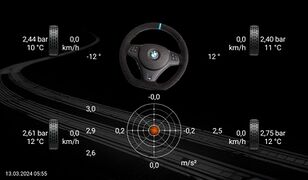
Bewegungsdaten

Inhaltsverzeichnis
TPMS
To ensure that the TPMS readings display correctly - when used in conjunction with the orange Resler module - the original TPMS app have to be uninstalled.
We've tested this till now with Xtrons TPMS07 and TPMS08 only.
TPMS set up
- Plug the TPMS receiver into an available USB port on the radio
- Open the I-BUS app ==> General Settings
- Tap “TPMS USB Interface” and select the interface that appears
- A message saying “Connected to TPMS” should appearn

TPMS USB Interface

Display TPMS values and settings
To display the TPMS values:
- Open the left menu (tap the three lines in the top-left corner or swipe from the left edge toward the center)
- Scroll down to “Motion Data” and select it
- Tire pressure and temperature values are displayed on the outside next to the wheels2
Tap one of the front tires to open the TPMS settings.
Available settings includes:
- TPMS alarm on/off
- High pressure warning
- Low pressure warning
- High temperature warning
- Pressure and temperature units

Navigationsmenü - Bewegungsdaten
Bewegungsdaten

TPMS Einstellungen


2 Wheel speed, steering angle3, and acceleration values are displayed only when an additional CAN bus interface is used!
Teaching/Replacing TPMS sensors
Currently the beta version does not support this feature yet. We are still working on it.
For more information on this topic, visit our other wiki: Programming TPMS Sensors
Values via CAN-Bus interface
With the additional CAN bus interface, the I-BUS app can display additional values from the significantly faster CAN bus. The values here are updated approximately every 10–200 ms (5–100 values per second, depending on the value and the control unit).
IMPORTANT: CAN Interface was an additional interface and do NOT replace Resler Modul!
Comparison of interfaces

CAN-Bus Interface

Connection of the CAN-Bus interface
All the details about the connection are listed here:
Einbauanleitung CAN-Bus Interface
set up CAN-Bus interface
Start by connecting the interface as described above.
- Plug the CAN bus interface into an available USB port on the radio
- Open the I-BUS app ==> General Settings
- Tap "CAN USB Interface" and select the interface that appears
- A message saying "Connected to CAN bus" should appear
CAN-Bus Interface
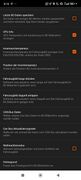
Selection of parameters to be displayed via CAN bus
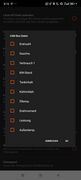
The following values are available (depending on the vehicle, equipment, and engine):
- RPM
- Speed
- Instantaneous fuel consumption
- Odometer reading
- Fuel level
- Coolant temperature
- Oil temperature (M52TU, M54, and S54 only)
- Torque
- Power
- Outside temperature
- Steering angle3
- Longitudinal and lateral acceleration4
- Display of current gear5 and status of the TCC (Torque Converter Lock-up Clutch)6
You may select these as follows:
- Open the I-BUS app
- On-board computer settings
- CAN bus data
- Check the desired values and confirm with “OK”
Note: CAN values override DeepOBD values (and DeepOBD values override I-BUS values)
In addition to the values, you may set the "CAN bus update rate" to specify how "fast" the values should be updated.
Either immediately whenever a new value arrives - or for better readability - every 100 ms or even less frequently.
CAN-Bus Interface
CAN-Bus Interface

CAN-Bus Interface


Wheel speeds, steering angle, acceleration and gear indicator via CAN
To display those values via CAN
- Open the left menu (tap the three lines in the top-left corner or swipe from the left edge toward the center)
- Scroll down to “Activity Data” and select it
- Activity data display: Cadence, steering angle3 and accelerations
The current gear/drive mode is displayed on the BC screen in the bottom left corner next to the date and time.
Navigationsmenü - Bewegungsdaten
Bewegungsdaten
ADVICE: Tire pressure and temperature data are provided via TPMS - not through the CAN interface!
3 The steering angle can only be displayed on vehicles equipped with DSC!
4 On older BMW E38 models acceleration may not be displayed even when DSC is enabled.
5 The information about the gear step (automatic transmission) is provided by the speedometer. The current gear (manual transmission) is determined using a predefined table based on engine speed, vehicle speed and a signal from the clutch switch. Please note that not all engine variants and gear ratios may be included yet.
6 The TCC (converter bypass clutch) has the following statuses:
- "-" TCC open
- "|" TCC closed
- "~" TCC in the grinding point
ADVICE: You need a TPMS system to monitor tire pressure and temperature!
